Iris Example
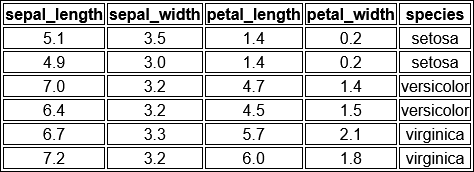
The "Iris" dataset. Originally published at UCI Machine Learning Repository: Iris Data Set, this small dataset from 1936 is often used for testing out machine learning algorithms and visualizations. Each row of the table represents an iris flower, including its species and dimensions of its botanical parts, sepal and petal, in centimeters. 50 records for each class(species) like below are in iris.csv, thus file contains total 150 records.
•Know More about Iris dataset
We are going to use the iris flowers dataset. This dataset is famous because it is used as the “hello world”
dataset in machine learning and statistics by pretty much everyone.
Learn more about this dataset on Wikipedia
Iris dataset
The dataset contains 150 observations of iris flowers. There are four columns of measurements of the flowers in centimeters. The fifth column is the species of the flower observed. All observed flowers belong to one of three species.
Modifications in dataset for CavyAI
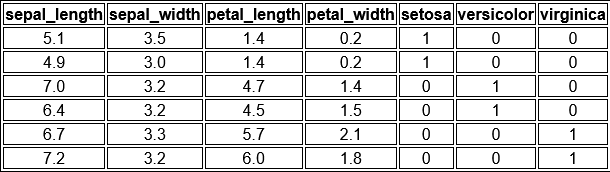
With CavyAI android application the ANN is taught to look for Numeric Input and result Output in binary format. In short for creating ANN with the use of this application you must have numeric Input Field and Output must be Binary. Therefore you have to convert the output Species field to binary format. This is very easy and you can do by simply by changing headers and records as below.
Build ANN Model with CavyAI (Step-By-Step)
- Download the Iris Dataset
- Open CavyAI Android application
- Go to Create ANN
- Click on
Select CSV File and browse for downloaded iris.csv file

- After file selection Verify and Click on
Next button to proceed for theI/O Field Selection Menu
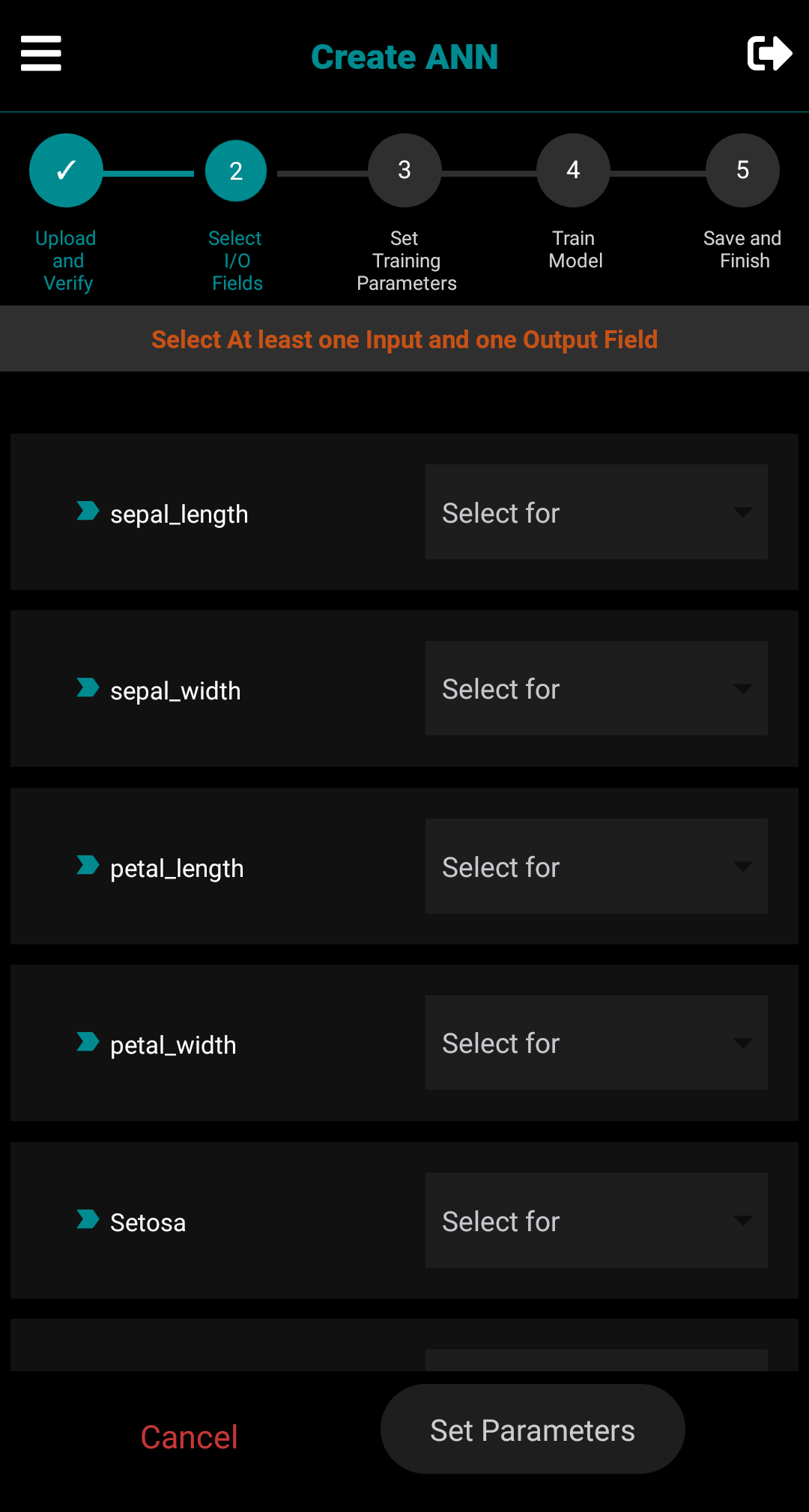
- After I/O field selection
Set Training Parameters and click onStart Training button to proceed for the building ANN Model
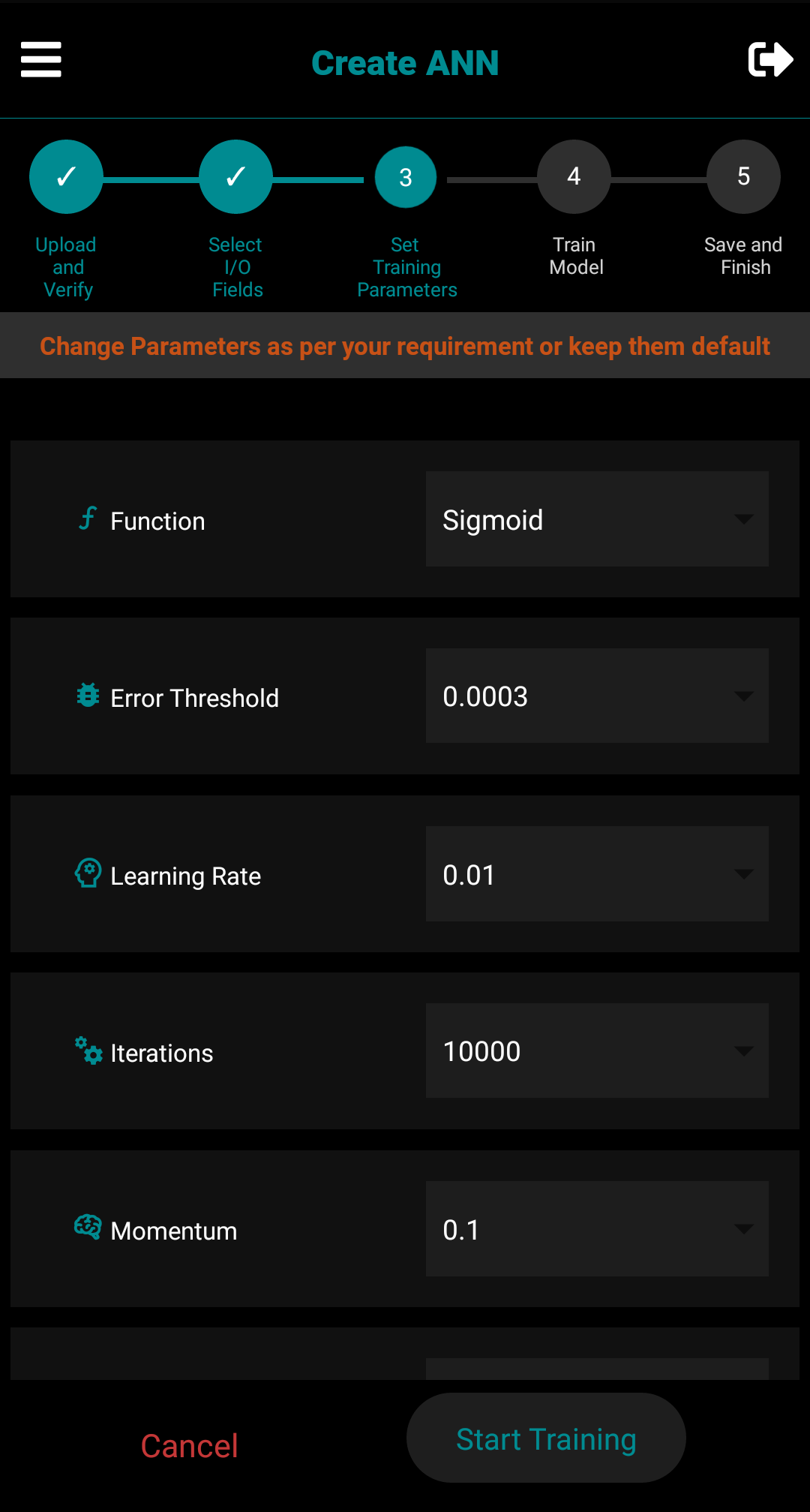
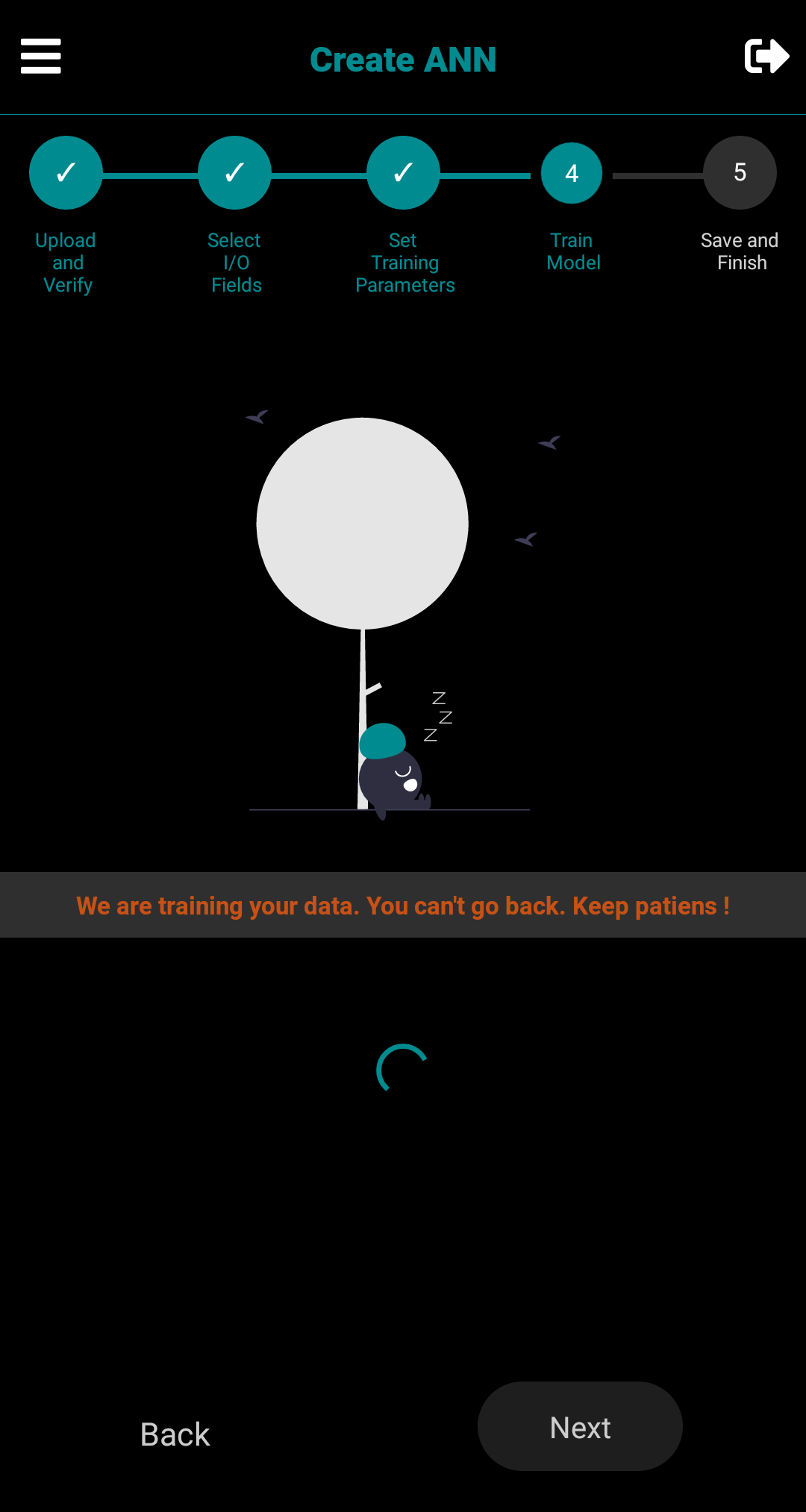
- While Training ANN Model, CavyAI will freeze for a while and you can't navigate to other in-app screen.
Keep Patience !
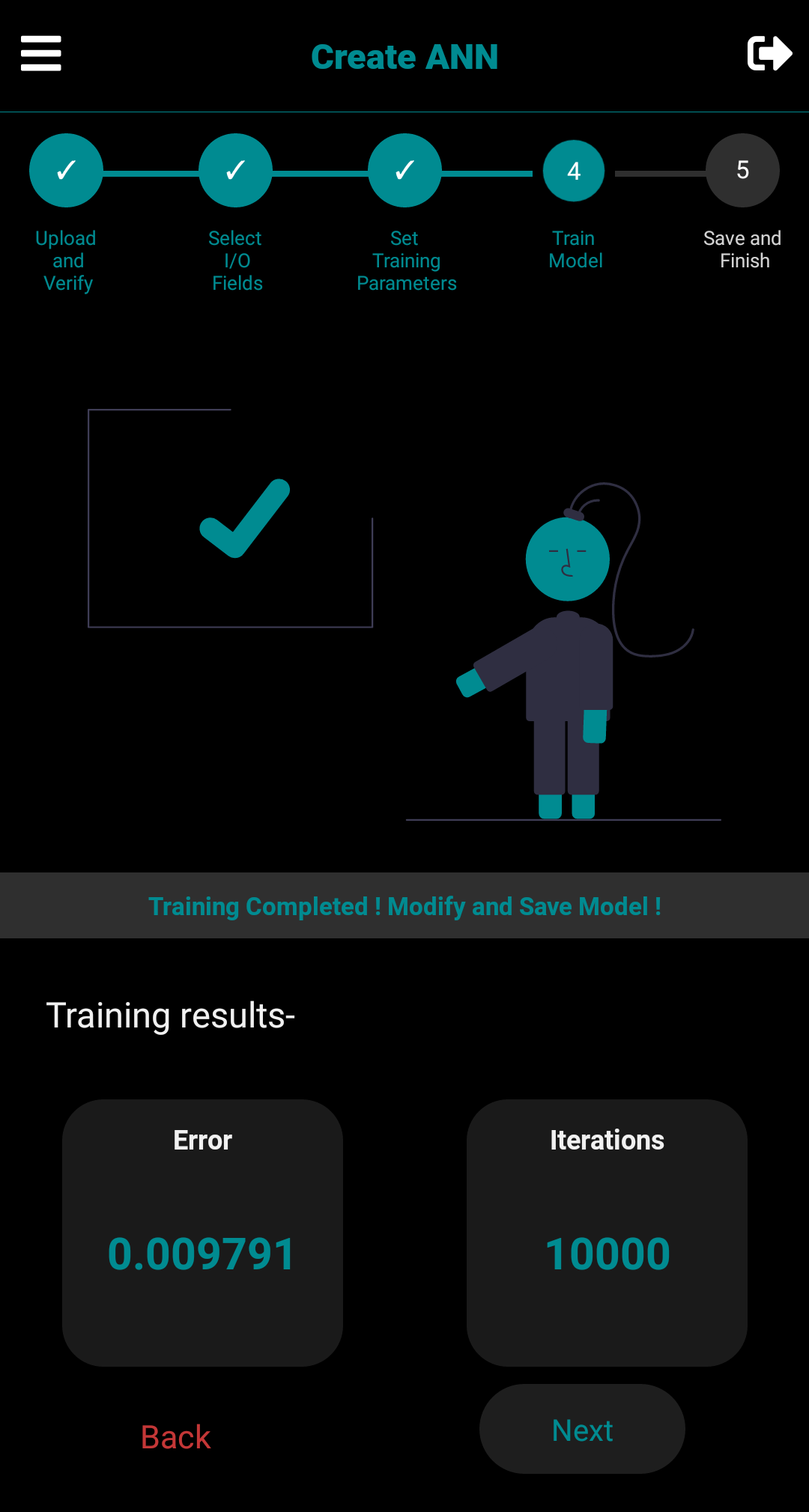
- Congratulations ! You just created your own ANN Model. Check for the desired error and proceed to Save the Model-
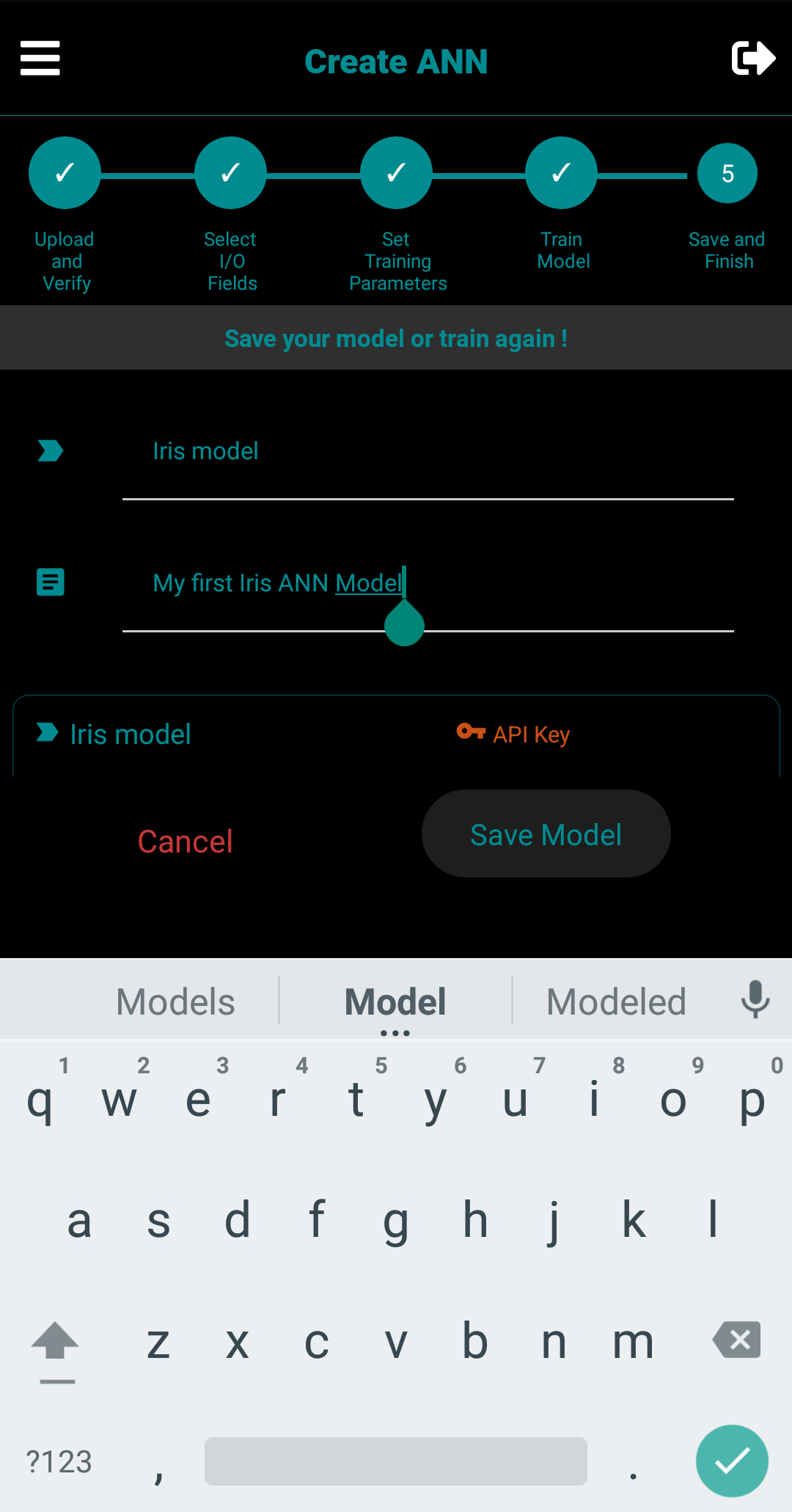
- Enter the Model Name and Short Note for your reference- then Click on
Save Model
- Congratulations ! Your ANN Model is now ready to use with CavyAI and RESTful API's, Click on
Finish to Create New ANN Model